
Day – 2 Import Data into Power BI
Importing Data into Power BI
Introduction
-
Importing data into Power BI is the first and most crucial step in building reports and dashboards. Power BI supports various data sources, including Excel, SQL databases, cloud services, APIs, and online data sources.
-
This step involves connecting to a data source, transforming the data if needed, and loading it into Power BI for visualization and analysis.
Methods to Import Data in Power BI
Power BI offers different ways to import and connect data:
-
Import Mode (Data is stored inside Power BI)
-
DirectQuery (Live connection to the data source)
-
Live Connection (Only for specific services like Analysis Services)
-
Dataflows (Cloud-based data preparation and transformation)
Step-by-Step Process of Importing Data into Power BI
The following steps explain how to import data into Power BI Desktop:
1. Open Power BI Desktop
-
Launch Power BI Desktop on your computer.
-
The “Home” tab contains options for importing data.
2. Click on “Get Data”
-
In the ribbon, select “Get Data” to view available data sources.
-
Power BI provides multiple connection types:
-
Files: Excel, CSV, XML, JSON
-
Databases: SQL Server, MySQL, PostgreSQL
-
Online Services: SharePoint, Google Analytics, Azure
-
APIs and Web Data: REST APIs, Web pages
-
3. Select Data Source and Connect
-
Choose your data source from the list.
-
Click “Connect” and enter credentials if required.
4. Preview and Transform Data (Power Query Editor)
-
Once connected, Power BI loads a preview of the data.
-
You can clean and modify the data using Power Query Editor, which allows:
-
Removing unnecessary columns
-
Changing data types
-
Merging and appending tables
-
Filtering rows
-
5. Load Data into Power BI
-
After transformation, click “Close & Apply” to load the data.
-
The dataset is now available in Power BI for visualization.
Power BI Data Import Workflow
Below is a simplified workflow diagram explaining the data import process:
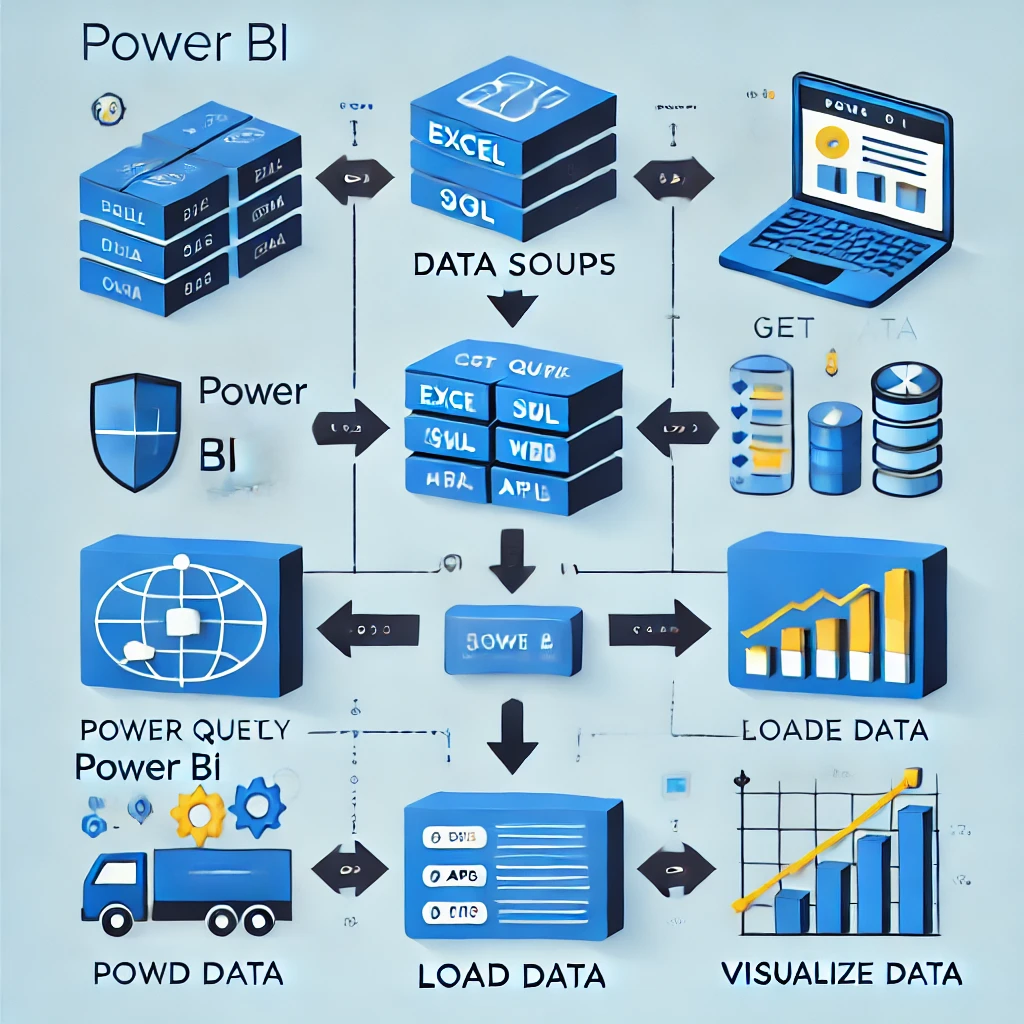
Import Modes in Power BI
Power BI provides different ways to connect to data, based on the size and refresh needs.
1. Import Mode (Default Mode)
-
Data is fully loaded into Power BI memory.
-
Best for small to medium-sized datasets.
-
Faster performance since data is stored inside Power BI.
-
Requires periodic refreshes to update data.
💡 Example: Importing an Excel file or CSV dataset.
2. DirectQuery Mode
-
Power BI queries the database live without storing data.
-
Ideal for large databases that update frequently.
-
Slower performance because every interaction sends a query to the database.
💡 Example: Connecting to SQL Server for real-time analysis.
3. Live Connection Mode
-
Available for Analysis Services (SSAS) and cloud services.
-
No data storage in Power BI, all calculations happen in the source system.
-
Best for enterprise-level data models.
💡 Example: Connecting to an Azure Analysis Services Model.
4. Dataflows (Cloud-Based Data Preparation)
-
Used for data preparation in Power BI Service (Cloud).
-
Helps manage large-scale ETL operations.
-
Best for reusable and shared datasets.
💡 Example: Extracting and transforming data from multiple sources before loading into Power BI.
Best Practices for Importing Data into Power BI
Use Import Mode for best performance on small datasets.
✅ Use DirectQuery for real-time, always-updated reports.
✅ Clean data before importing using Power Query.
✅ Reduce dataset size by removing unnecessary columns.
✅ Set up scheduled refreshes for up-to-date report
Conclusion
-
Importing data into Power BI is a critical step in building reports and dashboards.
-
Power BI provides various data connection options to ensure flexibility and performance.
-
By choosing the right import mode and cleaning data efficiently, users can build interactive and dynamic reports that drive better business insights.